Does Weather Affect Wi-Fi at Home
Discover why wifi is slow in rain and learn simple steps to improve your home Wi-Fi connection during bad weather. Get expert tips now.
Is your internet connection acting up when storms roll through? This guide answers whether weather really affects your wifi at home and why a sudden drop feels so obvious during rain.
The short answer is nuanced. Atmospheric moisture and storms can weaken radio signals through rain fade, but the visible router may still show a normal connection.
We will show how to tell if the issue is device-to-router wireless performance, the router-to-ISP link, or a damaged physical line. You will learn practical checks and fixes that work today.
Expect clear steps to identify buffering, lag, slow page loads, or dropped calls and to separate myths from likely causes. The connection you experience includes multiple links, and any one can be the bottleneck.
By the end, you’ll know which symptoms point to weather effects and which point to provider-side or local hardware problems.
Key Takeaways
- Weather can affect radio signals, but it is only one possible cause.
- Check both device-to-router and router-to-ISP links to isolate the fault.
- Common symptoms include buffering, lag, slow pages, and dropped calls.
- Simple tests can reveal if the issue is local hardware or provider-related.
- Storms and humidity differ in impact; this guide separates myth from likely causes.
How Rain and Weather Conditions Can Affect Your Home Wi‑Fi and Internet Connection
Bad weather affects two separate links. Your device uses a local wireless link to the router, and the router uses a provider link to carry data across the internet. Either link can degrade when weather conditions worsen.
What Else Would You Like to Know?
Choose below:
- Wi‑Fi (the in‑home wireless link): interference, placement, and humidity can weaken the local network and cause buffering or intermittent drops.
- Internet service (your ISP link): provider equipment, line damage, or neighborhood congestion can reduce speeds or cause outages during storms.
Even if the router shows normal lights, the wider internet connection can be the bottleneck. Providers that serve cable, fiber, satellite, or mobile plans respond differently to bad weather, so symptoms may point to the provider or to your home setup.
Practical mental model: keep the test flow simple—confirm if the outage is provider‑side, try quick in‑home fixes, then inspect cables or request a service check if problems persist.
wifi slow in rain: What’s Really Happening to the Signal
Heavy downpours and humid air can change how radio links behave around your home. This alters the signal your devices see and can make online tasks feel worse.
Rain fade explained: water droplets absorb and scatter radio waves
Rain fade happens when water droplets in the air absorb and scatter radio waves. Those droplets reduce the energy that reaches your device, so upload and download speeds can fall and packet loss rises.
Moisture, storms, and wind: how weather interference adds up
Humidity, storms, and gusts can stack effects. Wind can move trees or metal fixtures and briefly block or reflect wireless paths. That creates more retries and intermittent drops during calls or streams.
Why higher-frequency wireless can be more sensitive in heavy rain
Higher frequencies carry more data but are more prone to absorption by water. Fast links may perform great on clear days yet feel less stable once moisture and storms increase.
Quick check: the router itself may be fine—the air around it changed. Confirm provider status before reconfiguring gear.
| Cause | Effect on Signal | Typical Symptom | Likelihood |
|---|---|---|---|
| Rain fade / water droplets | Absorption & scattering of radio waves | Lower speeds, packet loss | High for satellite/fixed wireless |
| Humidity & moisture | Signal attenuation, more noise | Intermittent lag | Moderate indoors, higher outdoors |
| Wind & movement | Temporary blockage or reflection | Short drops, jitter | Variable, location dependent |
Rule Out a Provider Outage Before Troubleshooting Your Network
First, check whether the problem lies with your internet provider. If regional outages or damaged infrastructure are the cause, changing home equipment will not restore service.
How to check your ISP status for weather-related outages and infrastructure issues
Use the provider’s outage page or mobile app to see reported outages and service updates. Many ISPs post real-time maps that show affected ZIP codes.
Also sign in to your account for alerts, or call support and ask about outages for your ZIP code. If the provider confirms infrastructure work or storm damage, note any estimated repair times.
Signs the issue is outside your home
Look for patterns: neighbors reporting the same internet slow behavior, losses across multiple devices, or multiple home networks failing at once.
Frequent intermittent drops, modem error lights, and sudden wide-area outages point to external problems rather than a single piece of equipment.
“If several homes show the same fault, the provider is most likely managing an outage or damaged line.”
| Indicator | Likely Cause | Action |
|---|---|---|
| Multiple homes affected | Provider outage / infrastructure damage | Check ISP status map; call support |
| Only one home, one device | Local device or network issue | Restart modem/router; test other devices |
| Slow internet across devices | Congestion or degraded link | Document timestamps; contact provider |
Document what you see. Record timestamps, whether drops match peak bad weather, and modem error codes. Share this data with support for faster diagnosis.
Finally, know the difference: outages are hard failures; congestion is degraded performance that often shows as internet slow service when many users are online. If no outage is reported, proceed to in-home quick fixes while you wait for provider updates.
Quick Fixes to Improve Wi‑Fi Speed During Rain
You don’t always need new equipment to get steadier speeds during a stormy stretch. Start with simple, targeted steps that help most homes and avoid unnecessary costs.
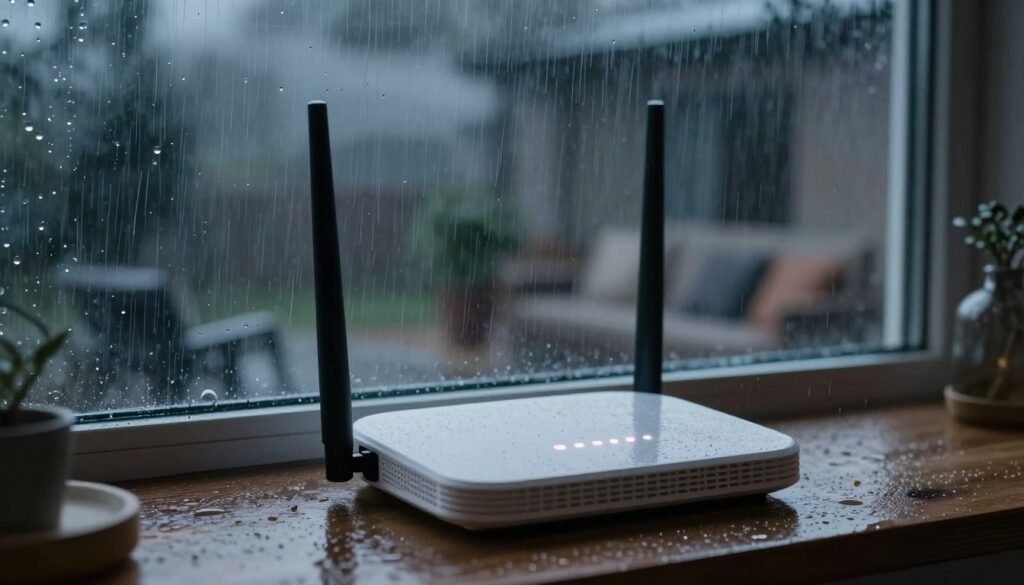
Restart your modem and router
Power down both devices. Wait 30 seconds, power the modem first, then the router. This forces a fresh connection and can clear transient errors.
Move the router for better signal
Place the router higher and centrally. Keep it away from thick walls, metal, and other electronics to reduce interference.
Limit connected devices to reduce congestion
Pause large downloads and disconnect unused devices. Prioritize work or school devices to keep essential calls stable.
Switch bands: when to use 2.4 GHz vs 5 GHz
Use 2.4 GHz for farther reach and through‑wall coverage. Pick 5 GHz when you are close and need higher speeds. Swap key devices to 2.4 GHz if 5 GHz becomes inconsistent at distance.
Use extenders or mesh to stabilize weak areas
For large or multi‑story homes, an extender or mesh system fills dead zones and keeps speeds more consistent across rooms.
Note: These steps improve performance for most in‑home problems but will not fix a major ISP outage.
Check for Water-Related Damage to Cables, Equipment, and Connections
When moisture reaches exposed cables or junctions, speeds and stability can fall. Heavy rain can harm outdoor or buried lines and cause faults that persist after the storm ends.
Outdoor and underground cables: how heavy rain can lead to slower speeds
Water intrusion can corrode cable shields and connectors. That raises noise on the line and reduces internet performance for the whole household.
What to look for around entry points and exposed connections
Do a safe visual check at cable entry points, wall plates, and any exposed fittings. Look for wet seals, rust, cracked jackets, or loose clamps.
Warning signs include sudden slower speeds that last after the storm, modem resync loops, or frequent drops during bad weather.
When to contact your ISP to inspect external wiring and service lines
Do not open sealed provider boxes or touch damaged service lines. Instead, document what you see with photos and timestamps.
Call the provider when you spot visible line damage, repeated storm-related outages, or persistent internet connection instability after basic router checks.
“If outages or corrosion appear outside your property, the provider may need to dispatch a technician to repair neighborhood infrastructure.”
- Document symptoms, times, and any modem error lights.
- Share photos with support and ask about external tests or a field visit.
- Remember that nodes, taps, and pedestals in the neighborhood can be the root cause.
Optimize Router and Device Settings for More Reliable Performance in Bad Weather
Small router and device tweaks often produce the biggest gains when storms make connections unstable.
Reduce interference inside the home to protect wireless signals
Keep the router away from large metal objects and dense appliance clusters. Crowded entertainment centers cause reflections and noise that hurt signals.
Move cordless phones, microwave ovens, and baby monitors clear of the router. Even small shifts can cut interference and improve network performance.
Place devices strategically for a cleaner connection to the router
Put high-priority devices like a work laptop or streaming box nearer the router. Fewer walls and a clear line-of-sight yield steadier signal and fewer retries.
When possible, use wired Ethernet for stationary devices. A cable delivers a stable connection during recurring bad weather and reduces demand on the wireless network.
Check these router settings:
- Update firmware and confirm security (WPA2/WPA3).
- Scan for crowded channels and pick a less used one.
- Enable QoS or device priority for essential equipment.
Validation step: after each change, restart the router and re-test connection quality to confirm what improved performance.
| Setting or Action | Why It Helps | Expected Effect | When to Use |
|---|---|---|---|
| Firmware update | Fixes bugs and stability | Fewer drops, better performance | Regularly / before storms |
| Channel change | Reduces local interference | Cleaner signal, fewer retries | If many neighbors overlap |
| Ethernet for stationary devices | Bypasses wireless variability | Stable connection, consistent speed | Work PC, smart TV, consoles |
| Device placement | Minimizes walls and reflections | Stronger signals in key rooms | High-use areas |
Choosing the Best Internet Type for Rainy Weather in the United States
Some connection types shrug off storms while others lose performance fast. Different internet connections respond differently to weather, and picking the right one can cut interruptions during bad weather.
Fiber optic internet: why it stays stable in rain and moisture
Fiber uses light inside sealed cables, so radio-based effects that disrupt wireless links do not apply. That makes fiber the most resilient option for consistent performance during storms.
Reliability matters more than peak speeds for remote work and streaming. Fiber keeps latency low and holds steady under most weather events.
Satellite internet: why rain fade can impact satellite signals and speeds
Satellite internet depends on a clear path between your dish and a satellite overhead. Heavy precipitation and atmospheric moisture can block or scatter signals.
Expect variable performance during severe conditions. Proper dish placement and provider guidance help, but outages can still occur when conditions worsen.
4G and 5G mobile data: why faster speeds can become less consistent in storms
4G and 5G can deliver fast data, yet higher frequencies and network congestion make them more sensitive to weather changes.
If coverage is strong, mobile service often holds up. In weaker areas, storms can reduce consistency and raise packet retries.
- If fiber is available, it is often the best choice for bad weather resilience.
- For satellite users, prioritize dish alignment and follow provider advice to reduce losses.
- For mobile-dependent households, keep a backup plan—hotspot or secondary service—for severe weather events.
Conclusion
Stormy conditions can reveal weak points across both your local network and the broader internet.
Key takeaway: episodes of “wifi slow in rain” usually stem from a mix of signal behavior, provider-side faults, and home setup choices. Check provider status first to rule out outages.
Then apply quick fixes: restart modem and router, move gear for clearer paths, limit connected devices, and use the best band for your layout. If problems persist, inspect external cables or contact your provider about possible equipment damage.
Think reliability over peak speed. Small, repeatable checks keep your home connection steady during bad weather and help you decide if an upgrade (fiber, satellite, or mobile) better fits your needs.
FAQ
Does weather affect home Wi‑Fi?
What’s the difference between a local Wi‑Fi issue and an internet service problem during bad weather?
How does rain cause “rain fade” and affect wireless signals?
Can moisture, storms, and wind together make connectivity worse?
Are some wireless frequencies more sensitive to heavy rain?
How can I check if my ISP is experiencing a weather-related outage?
What signs indicate the issue is outside my home rather than my network?
What quick fixes help improve performance during rain?
When should I switch to 2.4 GHz versus 5 GHz?
How can I check for water-related damage to cables and equipment?
What issues do outdoor and underground cables face in heavy rain?
When should I contact my ISP to inspect external wiring?
What router and device settings help keep performance steady during storms?
How should I place devices to get a cleaner connection to the router?
Which internet types perform best during rain in the United States?
Why is fiber optic service more reliable in wet weather?
How does rain fade affect satellite internet differently than terrestrial services?
Do 4G and 5G mobile networks hold up during storms?
Bluetooth Interference With Wi-Fi: When It Happens and How to Avoid It
» See exclusive tips for your home