Why 2.4GHz Wi-Fi Feels Slow and When It’s Still the Right Choice
Is your wifi slow on 2.4ghz? Understand the causes and find solutions to boost your internet speed with our troubleshooting guide
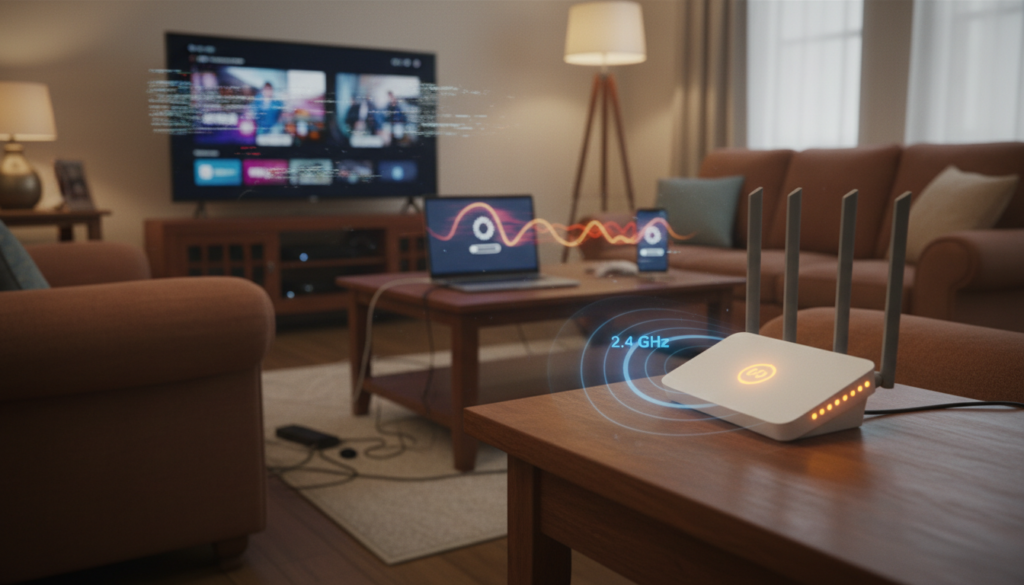
What “wifi slow on 2.4ghz” looks like: buffering videos, laggy calls, and slow downloads even with a solid internet plan. That mismatch often leads people to blame their provider when the real issue is the band and its limits.

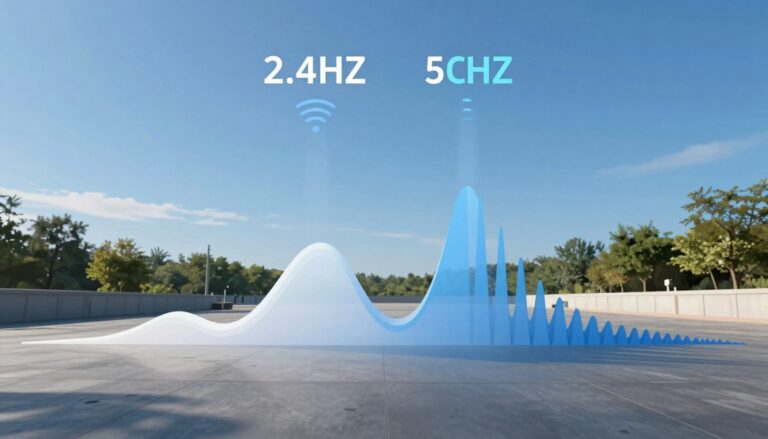
The 2.4 ghz band prioritizes coverage and compatibility over top speed. It travels farther and cuts through walls better, so it can serve distant rooms and older devices more reliably. Yet faster bands deliver higher throughput close to the router.
Who benefits from keeping the older band? Smart home gadgets, printers, and legacy devices usually do. If you need peak speed for streaming or work, pick a faster band. If you need steady reach, the 2.4 ghz choice still makes sense.
This article will help you spot why your wifi network lags at home and guide a careful test-first approach. Test, compare bands, check interference, then tweak router settings and placement for real-world improvement.
Key Takeaways
- 2.4 ghz gives longer range and better wall penetration but lower top speed.
- Perceived slowness often comes from congestion and distance, not the internet plan.
- Keep 2.4 GHz for smart devices and far rooms; use faster bands for streaming and work.
- Test both bands, isolate interference, then adjust router placement and settings.
- Small fixes—channel changes, placement—often improve real-world speed more than big upgrades.
Why the 2.4 GHz Band Often Feels Slow Compared to 5GHz and 6GHz
Older radio bands face heavy competition in dense areas, which reduces real-world throughput.
Congestion in neighborhoods happens because many nearby networks and devices share a small slice of spectrum. That contention means devices wait for airtime, so perceived speeds drop even if signal bars stay full.
What Else Would You Like to Know?
Choose below:
Range and speed tradeoffs matter. Longer propagation gives broader coverage but usually forces lower modulation and more retransmissions when interference appears. That cuts effective bandwidth.
Why newer bands feel faster: the 5ghz band and 6GHz offer more clean channels and less local traffic. At short range they support higher modulation and thus higher real-world speeds.
Expect modest 2.4ghz gains from a new router. Regulatory transmit limits and mature radio design mean models like the Asus RT-AC66U, RT-AC68U, and RT-AC86U show similar 2.4ghz performance in tests. Newer routers help features and multi-device handling, but they rarely fix basic airtime contention.
- Competition for airtime is often the bottleneck, not the ISP’s raw Mbps.
- Interference causes retries and lowers throughput even with a strong link.
- Most slowdowns stem from common home conditions: crowded channels, many devices, placement, and older gear.
| Characteristic | 2.4 GHz band | 5ghz band / 6GHz |
|---|---|---|
| Range | Longer, better wall penetration | Shorter, best at close range |
| Typical congestion | High in dense areas | Lower, more channels available |
| Real-world speeds | Often limited by airtime contention | Higher when within range |
| Effect of a new router | Minor 2.4ghz gains usually | Noticeable improvements for multi-device and short-range performance |
What this means next
Most perceived decreases in 2.4 ghz band performance trace back to common home factors: channel overlap, many devices, and placement. The next section shows how to diagnose those causes before changing settings.
Common Reasons wifi slow on 2.4ghz Happens in Real Homes
Many real-home problems come down to channel choices, competing gadgets, and construction materials that block signals.
Channel overlap: Most 2.4 ghz channels overlap. Pick the wrong channel and your device will share airtime with neighbors. In the US, channels 1, 6, and 11 avoid overlap and cut cross-talk and retries.
Too many devices: Phones, TVs, cameras, plugs, and speakers all take turns speaking on the same band. When many devices upload or stream, per-device throughput and latency drop noticeably.
Band steering and Smart Connect: Routers sometimes force a device onto the 2.4 ghz band for “stability.” That can leave a capable device stuck on the slower band in a room where 5GHz would be better.
Physical obstacles and interference: Metal, concrete, mirrors, and glass can weaken signals room by room. Microwaves, Bluetooth, baby monitors, and cordless phones also live in the same spectrum and cause interference.
Old equipment: An older modem, router, or device using legacy standards can limit the whole network’s performance. Upgrading just one bottleneck device often helps.
Quick checklist: slowdowns that worsen when everyone streams, camera uploads, or meal prep starts point to shared airtime and interference.
| Issue | How it shows | Practical fix |
|---|---|---|
| Channel overlap | Good signal bars but low throughput; frequent retries | Use channel 1, 6, or 11 (or run an analyzer) |
| Too many devices | Sluggish streaming when several gadgets are active | Move heavy users to 5GHz or schedule uploads |
| Band steering | Devices stuck on the longer-range band in close rooms | Create separate SSIDs or set per-device preferences |
| Physical barriers & interferers | Good near router, poor in distant rooms; intermittent drops | Reposition router; remove local interferers; add extenders if needed |
| Old modem/router/device | Consistent low top speeds across rooms | Update firmware or replace legacy hardware |
Next step: run a quick diagnosis across rooms before changing channels or buying gear. That confirms if the problem is band-specific, device-specific, or an ISP issue.
Run a Fast Diagnosis Before You Change Settings
Begin troubleshooting by measuring download Mbps in the spots that matter to you. First, run a speed test in each problematic room and record the download numbers and time of day. Consistency matters: test at the same time when possible so neighborhood congestion won’t skew results.
Compare bands on the same device
Use one device in the same spot to switch between 2.4ghz and 5ghz and note the differences. If one band reads much lower, you likely have a band-specific issue like interference or channel contention.
Check wired Ethernet to isolate ISP problems
Plug a laptop into the router or modem with Ethernet and run the same speed test. If wired Mbps match your plan, focus on wireless channels and placement. If wired is low, contact your internet provider or inspect the modem and line.
“Baseline data makes fixes measurable—start here and work outward.”
| Test | What to record | Action if problem |
|---|---|---|
| Room speed test | Download Mbps, time | Triage worst room first |
| Same-device band test | 2.4ghz vs 5ghz Mbps | Suspect interference or steering |
| Wired Ethernet test | Download Mbps via cable | Focus on ISP/modem if low |
Fix Interference and Congestion on the 2.4GHz Network
Begin by finding the least used portion of the 2.4 ghz spectrum and placing your network there. The goal is simple: reduce collisions and retransmissions so devices use airtime more efficiently.
Decide Auto vs manual. If your router re-evaluates channels often, Auto can pick a clear path. If Auto selects a crowded channel repeatedly, set one manually and test results.
How to safely change the channel
Open a web browser, enter your router’s IP, sign in, and go to Wireless settings. Select the 2.4 ghz band, pick a channel, and save. Reboot only if prompted.
Non-overlap rule: use channels 1, 6, or 11 to avoid overlap. Channel 6 is common, so check neighbors before choosing it.
Find the best channel with a wireless analyzer
Run a tool like NetSpot to view nearby networks and channel groups. Channel groups mean networks can occupy a wider slice than a single number; inspect adjacent MHZ ranges, not just one channel label.
Cut common interference sources
Move the router away from microwaves, Bluetooth hubs, baby monitors, and cordless phone bases. Also avoid placing it near TVs or soundbars that host many Bluetooth devices.
After each change, re-run speed tests in the rooms that matter and keep the setting that improves Mbps and stability.
| Action | What to check | Expected benefit |
|---|---|---|
| Use analyzer (NetSpot) | Nearby networks and occupied channels | Find least crowded channel |
| Set channel 1, 6, or 11 | Avoid overlap and adjacent interference | Fewer retries and steadier throughput |
| Try Auto then manual | Router behavior over time | Best channel without manual micromanage |
| Remove local interferers | Placement near microwaves/phones/Bluetooth | Lower noise floor and better link quality |
Next step: if channel cleanup helps but issues remain, focus on router placement, antennas, and hardware limits that affect real-world performance.
Improve Router Setup, Placement, and Hardware for Better Speeds
A few practical adjustments to placement, antennas, and cabling can improve speeds across your house. Start with small changes; they often beat deep configuration tweaks.
Placement and height that match your home
Move the router to a central spot to reduce wall crossings and boost usable range. For single-story homes, set it around 2–4 feet high near the devices you use most.
For multi-story layouts, elevate the unit on a bookshelf or wall bracket so signal reaches upstairs rooms more reliably.
Antenna alignment for real coverage
Vertical antennas push signal horizontally. Make sure all are vertical for one-floor coverage.
In multi-level homes, angle some antennas horizontally to help vertical coverage between floors.
Cables, connectors, and ethernet cable
Check modem and router handoffs. Loose coax, fiber, or Ethernet plugs cause spotty mbps and drops.
Replace damaged leads and use Cat 6 or better ethernet cable when wired tests show capped speeds.
When a new router helps—and when it doesn’t
Upgrade if your old router uses an outdated standard or shows failing radios; newer models improve multi-device performance and higher-band speeds.
But make sure expectations are realistic: a new router often brings limited gains for the legacy 2.4 GHz band due to regulatory and technical limits.
Best next action: if you need peak speed, move key devices to higher bands. If you need coverage, focus on placement, antennas, and solid cabling first.
Conclusion
When many devices share a small slice of spectrum, individual throughput drops even if signal bars look fine.
Core reason: the 2.4 ghz band is crowded and has limited spectrum, so real-world wifi speeds fall when neighbors and household devices compete for airtime.
Practical takeaway: use the 5ghz band or 6GHz for priority devices and keep 2.4 ghz for longer range and compatibility. Test first, compare bands on the same device, and confirm wired internet performance before changing settings.
Quick checklist: try channels 1, 6, or 11; re-test after each change; adjust placement and cabling; and consider a router upgrade for overall network efficiency, knowing 2.4 ghz gains may be modest.
Keep analyzer scans and repeat speed tests over time to maintain steady performance.
FAQ
Why does the 2.4 GHz band often feel slower than 5 GHz or 6 GHz?
If 2.4 GHz reaches farther, why doesn’t it deliver higher speeds across my home?
Will buying a newer router automatically fix poor performance on the 2.4 GHz band?
What causes channel overlap and why do channels 1, 6, and 11 matter?
How do many devices on the same band affect performance?
What is band steering or “Smart Connect,” and can it hurt performance?
How much do walls, metal, and appliances affect signal room by room?
Could old routers or legacy Wi‑Fi standards be limiting my network?
What quick tests should I run before changing settings or buying gear?
How do I pick the best 2.4 GHz channel or know when to leave it on Auto?
How do I change the 2.4 GHz channel safely in my router settings?
What household devices cause the most interference and how can I reduce it?
How should I place and orient my router for better coverage in single-story and multi-story homes?
Do cables and connectors affect network performance, and which Ethernet should I use?
When will a new router make a real difference, and which standard should I pick?
2.4GHz vs 5GHz Range: Why One Reaches Further
» See exclusive tips for your home