What the Lights on Your Router Actually Mean When Something Goes Wrong
When your internet cuts out, the router is usually trying to tell you why, but most people only notice that “a light is blinking.” Those tiny LEDs are a fast diagnostic tool, and once you know the router lights meaning, you can stop guessing and start fixing.
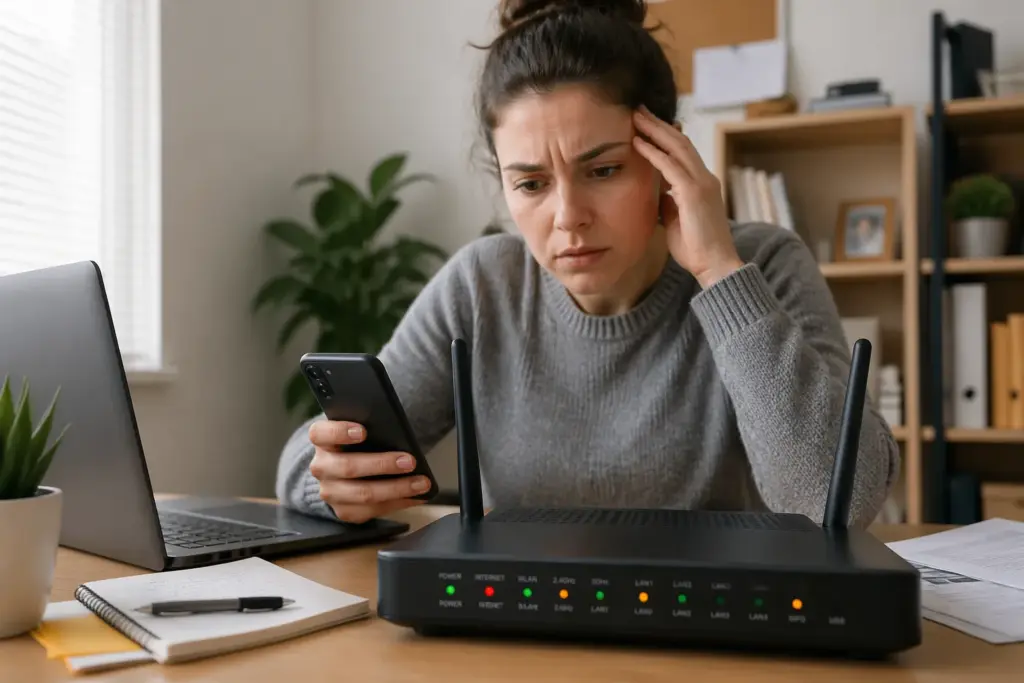
I have seen people reboot a router ten times because the Wi-Fi light looked “weird,” when the real issue was the modem or the fiber ONT upstream. The lights can point you to the right box, the right cable, or the right setting in under a minute.
The catch is that every brand uses slightly different labels and colors, so you need a practical way to interpret what does router light color mean in real life. This guide sticks to the common patterns across consumer routers, then calls out the brand quirks that trip people up.
The standard LED indicators most routers share
Most home routers keep the same core set of LEDs even when the case design changes, because the hardware inside still needs the same checkpoints. When you are decoding router LED indicator meaning, start by identifying Power, Internet or WAN, Wi-Fi, and LAN or Ethernet.
The Power light tells you the router is getting stable electricity and has finished booting its firmware. If Power never turns solid, you are troubleshooting the router itself, not your ISP, and that changes what you should do next.
The Internet or WAN light is the one that separates “my Wi-Fi works” from “my internet works,” and people mix those up constantly. A router can broadcast Wi-Fi perfectly while the WAN link is down, so the Internet LED is often the most honest one on the front panel.
What Else Would You Like to Know?
Choose below:
Wi-Fi lights usually split into 2.4 GHz and 5 GHz, and newer models add a 6 GHz LED for Wi-Fi 6E or Wi-Fi 7 gear. If one band is dark or blinking oddly, it can explain why one device connects fine while another device keeps dropping.
LAN or Ethernet port lights show whether a wired device is physically linked and whether data is moving. A solid light often means a link is present, and a flicker usually means traffic, which is a simple but useful clue when a desktop says “No internet.”
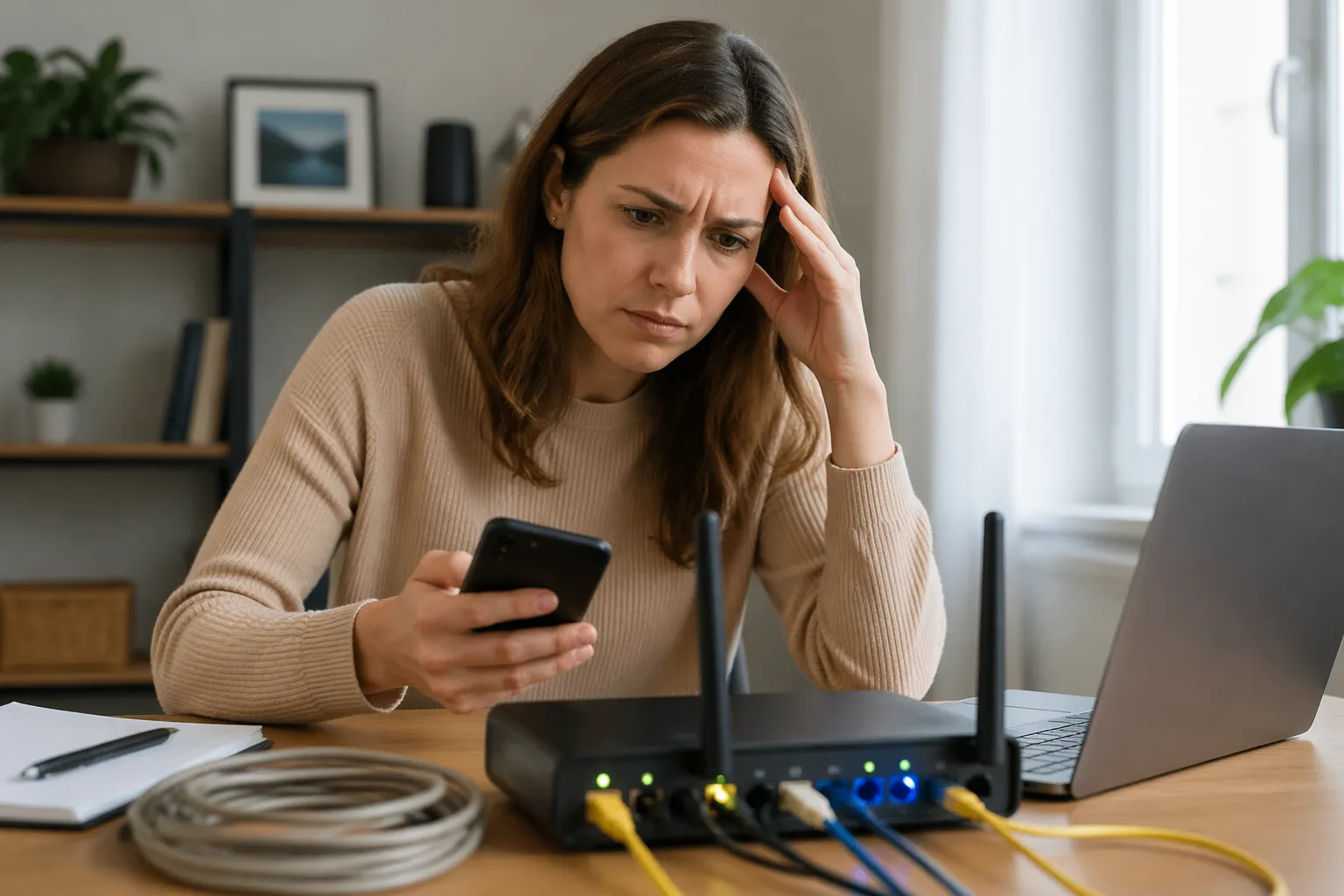
What blinking patterns and colors usually signal
Color and blink rate are the router’s shorthand, and the same basics show up across ASUS, Netgear, TP-Link, Linksys, Eero, and ISP gateways. If you want a quick router lights meaning cheat code, think solid equals stable, slow blink equals activity or negotiation, and fast blink equals trouble or pairing mode.
Green or white usually means “normal,” while amber or orange often means “degraded” or “no internet.” When people search router blinking orange light, they are usually dealing with a WAN authentication failure, a modem outage, or a router stuck waiting for an IP address.
Red typically points to a hard failure, like no WAN link, failed provisioning, or a firmware crash that did not recover cleanly. Blue is commonly reserved for WPS pairing, mesh setup, or a “smart” status mode that changes depending on the app.
Some routers use purple or magenta for “updating” or “error,” and that is where the manual matters because the same color can mean different things. If a light stays in an update color for more than 10 to 15 minutes, treat it as stuck and plan a controlled reboot, not a panic unplug.
Blinking can also mean the device is doing exactly what it should, like negotiating a PPPoE session or renewing DHCP on the WAN. The trick is watching whether it settles into a steady state, because endless blinking is usually the real problem.
How to read the lights when your connection drops
When the internet drops, do not stare at every LED at once, because you will talk yourself into the wrong fix. Use a simple flow: check Power first, then WAN or Internet, then Wi-Fi, then LAN ports for the device you care about.
This is where what does router light color mean becomes a real troubleshooting tool, because you can separate “Wi-Fi issue” from “ISP issue” without opening an app. If the Wi-Fi light looks normal but the Internet light is orange or red, your devices are fine and the WAN path is the suspect.
| Light state you see | What it usually means | What to do first |
|---|---|---|
| Power blinking for more than 3 minutes | Boot loop, firmware hang, or unstable power | Try a different outlet, then reboot once, then consider factory reset |
| Internet/WAN off while Wi-Fi is on | No link to modem/ONT or bad WAN cable | Reseat or replace the WAN cable, check modem/ONT link light |
| Internet/WAN orange or red | Connected to modem but no usable internet session | Power cycle modem/ONT first, then router, check ISP outage page |
| Wi-Fi light off but Internet light normal | Wireless radio disabled or crashed | Check Wi-Fi button, app toggle, or schedule, then reboot router |
| LAN port light off for a wired device | No physical Ethernet link | Swap cable, try another port, check device NIC settings |
| Wi-Fi light fast blinking with blue/white | WPS or pairing mode active | Exit pairing mode, disable WPS if you do not use it |
Power and boot lights, what normal startup looks like
A normal boot has a short light show, then it calms down, and that “settle” point matters more than the colors during the first minute. If the Power LED keeps cycling, the router never finishes loading its software and you should treat it like a device problem.
Routers often blink Power while they run a self check, then go solid when the CPU and radios are up. If you see Power go solid, then the router reboots again by itself, suspect overheating, a failing power adapter, or corrupted firmware.
A flaky power brick causes weird router lights meaning symptoms, because the router can look “alive” but crash under load. If the adapter feels very hot, or the router reboots when several devices start streaming, replace the adapter with the same voltage and equal or higher amperage.
Firmware updates also change the Power light behavior, and some brands flash a dedicated update color to warn you not to unplug it. If your router loses power during an update, you can end up with a solid red light and a recovery mode that needs a laptop and a special web page.
WAN and internet LEDs, where most outages show up
The WAN or Internet LED is the one I trust most when diagnosing a sudden outage, because it tells you whether the router can talk to the upstream device. If that light is off, the router may not even detect a cable, so start with the physical link before you touch settings.
If the WAN light is on but the Internet light is orange, the router sees the modem but cannot complete the login or IP assignment. That is the classic router blinking orange light scenario on many ISP gateways, and it often clears after you power cycle the modem or ONT first.
For cable internet, a modem reboot can take several minutes because it has to lock onto downstream and upstream channels, then register with the provider. If you restart the router too quickly, the router may give up, then you get stuck reading the router LED indicator meaning wrong because the upstream box never finished its job.
For fiber, the ONT usually stays online, but the WAN session can still fail if the router expects PPPoE credentials or a specific VLAN tag. If you recently replaced the router and the WAN light stays amber, verify the ISP requirements, because some providers still use PPPoE even in 2026.
Another common trap is double NAT, where an ISP gateway is still routing and your personal router is also routing behind it. The lights can look normal while your apps break, so if the Internet LED is green but gaming and VPN fail, check whether you have two routers handing out addresses.
Wi-Fi band and WPS lights, the reason one device works and another fails
Wi-Fi LEDs are less about “internet” and more about “radio is on,” and that difference matters when troubleshooting. If the Wi-Fi light is off, your phone will say “No networks found” even if the WAN is perfect.
Separate 2.4 GHz and 5 GHz lights can explain a lot of real world complaints, like smart plugs working while a laptop keeps disconnecting. Many smart home devices only use 2.4 GHz, so if the 2.4 GHz LED is dark, you will think your router is broken when it is really just one band disabled.
WPS is the light that causes accidental chaos, because a long press on the wrong button can put the router into pairing mode for two minutes. When that happens, the LED may blink blue or white quickly, and your normal Wi-Fi troubleshooting steps will not help until the router exits WPS.
Mesh systems sometimes reuse the Wi-Fi light to show backhaul quality, which is a different kind of router lights meaning than a standard standalone router. If a node shows amber, it may still be online, but it is connected on a weak link and your speed will drop hard in that room.
If you run a single SSID for both bands, the lights can still help you spot band steering issues. A steady 5 GHz light with constant 2.4 GHz blinking can mean your devices keep falling back to 2.4 GHz because the 5 GHz signal is too weak where you sit.
Ethernet and activity lights, the fastest way to catch a bad cable
Ethernet LEDs are plain but brutally honest, and I use them before I open any speed test site. If a port LED is dark, the router and device are not negotiating a link, so you have a cable, port, or NIC problem.
Many routers use two colors on a LAN port, like green for gigabit and amber for 100 Mbps, and that is a hidden speed clue. If you pay for fast internet but your wired port shows the slower color, you might have a damaged cable pair or a cheap switch in the path.
Activity flicker is normal, but a port that blinks like crazy even when the connected device is asleep can point to a loop or a chatty device. If you recently added a switch and the router starts acting unstable, unplug that switch and see if the activity lights calm down.
Some ISP gateways label the LAN LEDs as “Ethernet 1-4” and keep them on the back, which makes people ignore them. If you are troubleshooting a work PC, a quick glance at the port lights beats ten minutes of driver reinstalling.
Quick light-based fixes you can try before calling your ISP
Once you know the router LED indicator meaning for your model, you can do a few targeted moves that fix a lot of outages. I prefer changes that are reversible, because factory resets create new problems like broken smart home devices and lost VPN settings.
Match the fix to the light that looks wrong, not the app that happens to be failing at the moment. If the WAN light is out, swapping DNS settings will do nothing, and if the Wi-Fi light is off, replacing the modem is a waste of time.
- Reseat the WAN cable at both ends
- Power cycle modem or ONT first, then router
- Swap in a known good Ethernet cable
- Check for an accidentally pressed Wi-Fi or WPS button
- Confirm the router is not stuck in firmware update mode
- Move the router away from heat sources and stacked electronics
- Test one device by Ethernet to separate Wi-Fi from WAN issues
Brand-specific differences worth knowing
Even though the basics are consistent, brands love their own color schemes, and this is where people misread what does router light color mean. If you switch from an ISP gateway to a retail router, do not assume orange always means the same thing.
Netgear Nighthawk models often use amber to show “no internet” on the Internet LED, while the Wi-Fi LEDs can still look fine. Some ASUS routers use red for WAN failure and white for normal, but they may also use a separate LED for 2.5G WAN that stays dark if you are plugged into the wrong port.
TP-Link routers and Deco mesh units tend to use a single multicolor status light, which is great until you forget the code. On many Decos, solid green is good, pulsing red is no internet, and blue is setup, but older firmware revisions tweak the pattern.
Linksys often labels the Internet light with a globe icon, and some models flash it during traffic, which can make people think something is wrong. Eero and Google Nest WiFi use one main LED, and they rely on color plus pulse pattern, so you have to watch it for a few seconds before you decide it is “blinking.”
ISP gateways add their own quirks, especially Comcast Xfinity xFi, Spectrum, AT&T, and Verizon. Those boxes may show a router blinking orange light during provisioning or after an outage, even when your own router behind it is perfectly fine.
When the lights look normal but something is still wrong
This is the part that makes people hate networking, because the LEDs can look calm while your internet feels broken. Normal lights only mean the router thinks links are up, not that your DNS, routing, or Wi-Fi performance is healthy.
DNS problems are the classic example, because the WAN light stays normal while every site times out. If pages fail but apps like Netflix still open, try changing DNS to 1.1.1.1 or 8.8.8.8, then retest before you reboot anything.
Congestion also hides behind “normal” LEDs, especially on older routers with weak CPUs or too many connected devices. If the lights look fine but speed collapses at 7 p.m., you may be hitting bufferbloat, and a router upgrade or SQM setting can help more than another restart.
Wi-Fi interference is another silent killer, because the Wi-Fi LED does not warn you that your neighbor just fired up a new access point on the same channel. If your speed drops in one room, use a Wi-Fi analyzer app to check channel crowding, then set 2.4 GHz to channel 1, 6, or 11 and retest.
Security and filtering can break things while the lights stay normal, like a misconfigured parental control profile blocking game servers or a VPN client on the router hijacking traffic. If one device works and another does not, compare their IP addresses and whether they land on a guest network.
Conclusion
Router lights are not decoration, they are a blunt status report, and learning the router lights meaning saves time every time your connection acts up. Once you can read WAN versus Wi-Fi versus LAN at a glance, you stop doing random fixes and start doing the right one.
If you remember one thing, watch the Internet or WAN LED first, because it tells you whether the problem lives inside your house or outside it. Keep your router’s manual bookmarked for the exact router LED indicator meaning, and treat a router blinking orange light as a clue, not a mystery.
Router Admin Page Won’t Load: How to Get Back Into Your Router Settings
» See exclusive tips for your home