How Building Materials Like Concrete and Brick Block Wi-Fi Signals
If your Wi-Fi dies the moment you walk behind a thick wall, you are not imagining it. Older homes and apartments often have the worst coverage because the same materials that make them sturdy also make them hostile to radio.
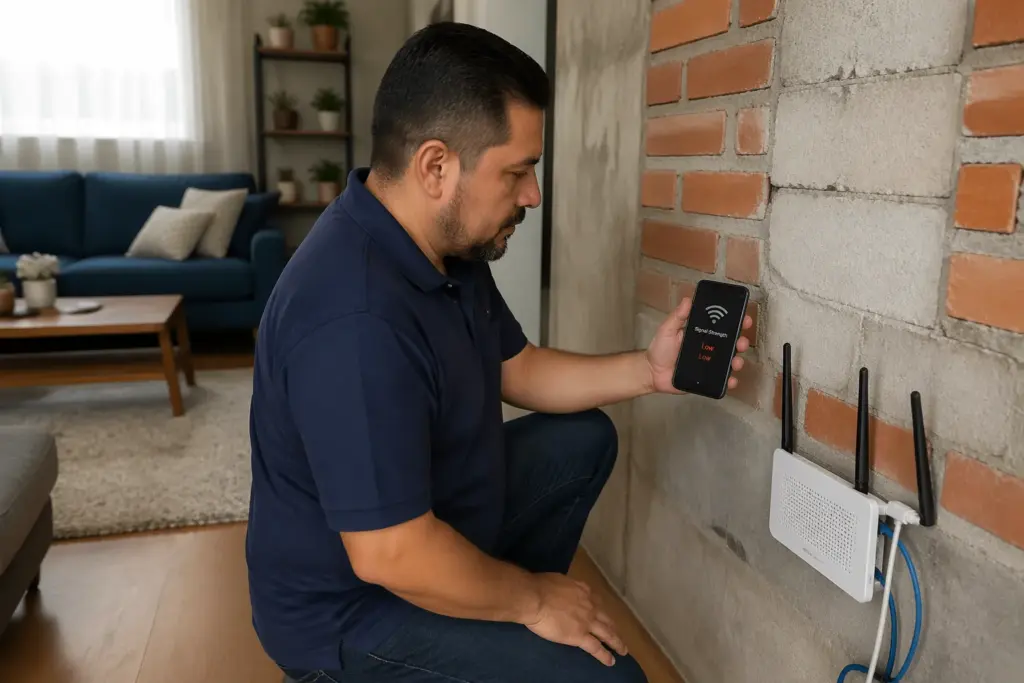
People usually blame the router first, but the real culprit is often the structure itself. Concrete brick walls blocking wifi is a common complaint because both materials absorb and scatter the signal in ways drywall never will.
Wi-Fi is just radio energy, and radio does not get a free pass through dense building materials. If you have ever had a phone call get scratchy in a parking garage, you have already seen the same physics at work.
The frustrating part is that the problem can look random from room to room. One wall might be plain plaster, while the next one hides metal lath, foil-backed insulation, or a chimney chase that eats signal for breakfast.
Why some materials block radio signals more than others
Wi-Fi uses electromagnetic waves, mainly at 2.4 GHz and 5 GHz, and those frequencies react differently to different materials. Dense, wet, or metal-filled materials soak up energy and turn it into heat, while irregular surfaces scatter it in messy directions.
Concrete is a double problem because it is dense and often contains rebar or wire mesh. That metal behaves like a partial shield, so what should be a clean path becomes reflections, dead spots, and sudden drops.
What Else Would You Like to Know?
Choose below:
Brick looks simple, but it is usually laid with mortar, air gaps, and sometimes moisture trapped in the pores. That mix creates both absorption and multipath, so the signal that reaches you can be weaker and also harder for devices to decode.
Water is a quiet Wi-Fi killer, and many building materials hold more moisture than you would guess. Basements, exterior walls after rain, and bathrooms with tile and plumbing can all make wifi signal through concrete wall problems feel worse at certain times of year.

Frequency matters, and this is where many home setups get tripped up. 5 GHz is faster in the same room, but it struggles more with building materials wifi penetration, while 2.4 GHz tends to travel farther through obstacles but with less peak speed.
What “attenuation” really means for your internet speed
Attenuation is just signal loss, measured in decibels, and every wall takes a bite out of your Wi-Fi. When the bite is big enough, your device shifts to a slower modulation and your speed drops even if your internet plan is fine.
This is why a speed test can look great next to the router and terrible in the bedroom. The connection is still “working,” but it is working in a degraded mode with more retransmissions and less usable throughput.
Latency can climb too, and that is what makes video calls feel choppy and games feel mushy. A weak signal forces the link to repeat packets, so you wait longer for the same amount of data to arrive.
Brick wall wifi attenuation often shows up as a stable connection that is just slow, especially on 5 GHz. Concrete tends to show up as sudden drops, especially when you move a few feet and the reflections change.
People sometimes chase the wrong fix by upgrading to a faster internet tier. If the bottleneck is radio loss through walls, more ISP bandwidth will not magically punch through concrete and brick.
How much signal loss each common material causes
No two houses are identical, so treat any numbers as a starting point, not a promise. Still, having a rough range helps you understand why concrete brick walls blocking wifi can wipe out a strong signal in one or two rooms.
Thickness, moisture, and hidden metal change everything, and 5 GHz usually loses more than 2.4 GHz through the same wall. If you want to be precise, a Wi-Fi analyzer app plus a slow walk around the house will tell you where the losses really stack up.
| Material | Typical loss per wall (dB) | What it looks like in real use |
|---|---|---|
| Drywall with wood studs | 3 to 6 dB | Small speed drop, usually still usable on 5 GHz |
| Plaster and lath | 5 to 12 dB | More dead spots, 2.4 GHz often behaves better |
| Brick (single wythe) | 8 to 18 dB | Noticeable brick wall wifi attenuation, especially at 5 GHz |
| Concrete wall (poured or block) | 12 to 25 dB | Wifi signal through concrete wall may collapse to very low rates |
| Reinforced concrete (rebar or mesh) | 20 to 35 dB | Frequent drops, roaming problems, severe penetration loss |
| Low-E glass or foil-backed insulation | 15 to 30 dB | Signal seems fine inside, then falls off sharply near windows |
Why concrete and brick create “weird” dead zones
With drywall, the signal mostly weakens in a predictable way as you add distance and a wall or two. With concrete and brick, reflections from dense surfaces create pockets where the signal cancels itself out.
You can see this when one corner of a room works fine and the couch six feet away does not. That is not your imagination, it is multipath interference changing as the waves bounce off walls, floors, and even large appliances.
Rebar makes it worse because it turns parts of the wall into a rough grid that reflects and blocks at the same time. In some buildings, the wall behaves like a leaky shield, so you get a faint signal that looks connected but performs badly.
Doorways and hallways can act like waveguides, which sounds fancy but means the signal “funnels” down a corridor. That is why you might get decent coverage in a hallway but terrible coverage in the rooms off to the side.
If you are dealing with building materials wifi penetration issues, you should expect roaming to be rough too. Phones and laptops cling to a weak access point longer than you want, so they stay stuck on a bad link even when a better one is nearby.
What this means for router placement in older homes
In an older brick home, the classic advice to put the router in a far corner is a recipe for misery. You want the router closer to the center of where you actually use devices, even if that means the modem location is inconvenient.
Height helps, but only within reason, because Wi-Fi spreads outward like a squashed sphere. A router on a shelf or mounted high on a wall often beats one hidden behind a TV or stuffed in a cabinet.
Avoid putting the router right next to thick masonry, fireplaces, or concrete support columns. If concrete brick walls blocking wifi is your main problem, every foot you can move away from that barrier improves the odds that the signal finds a cleaner path.
In many older homes, the worst spot is the basement, where concrete is everywhere and the signal has to climb through dense floors. If your modem is down there, treat the basement router as a temporary stop and plan to move Wi-Fi upstairs with a better method.
Try to picture the direct line from router to your problem room and count how many heavy walls it crosses. One brick wall might be manageable, but two brick walls plus a bathroom full of tile can turn a strong 5 GHz network into a weak 2.4 GHz fallback.
Quick checks to confirm the wall is the problem
Before you buy anything, prove the issue is the structure and not a flaky router or ISP outage. A simple test is to run a speed test in the same room as the router, then run it again in the problem room without changing anything else.
If speeds drop hard and your Wi-Fi signal meter drops by a lot too, the wall is probably the reason. If speeds drop but the signal meter stays strong, you may be dealing with interference, a crowded channel, or a device problem.
Check both bands if you can, because 2.4 GHz and 5 GHz behave differently through masonry. When wifi signal through concrete wall performance is awful on 5 GHz but tolerable on 2.4 GHz, that points straight at penetration loss.
Walk around with a Wi-Fi analyzer and watch the RSSI change as you cross doorways and stand near the wall. If the signal falls off a cliff right at the brick or concrete, you have your answer.
Also pay attention to which access point your device is using in a mesh system. A node might be connecting back to the main router through the same ugly wall, which means the mesh looks strong but the backhaul link is weak.
Strategies that help when you can’t move the signal through the wall
If you cannot relocate the router and you cannot remove the wall, you have to work around the wall. The goal is to avoid forcing a single radio hop to punch through masonry that causes heavy brick wall wifi attenuation.
The best improvements usually come from adding an access point on the far side of the barrier, not from cranking transmit power. More power can make your router louder, but it does not make your phone louder, so the return path still fails.
- Add a wired access point on the other side of the masonry
- Use a mesh node placed in a doorway, not behind the brick
- Switch distant devices to 2.4 GHz for stability
- Lower 5 GHz channel width to 40 MHz for better reliability
- Move the router away from fireplaces, chimneys, and concrete columns
- Disable “smart connect” if it keeps devices stuck on weak 5 GHz
Why range extenders often disappoint in brick and concrete homes
A basic range extender repeats what it hears, and that is the core problem. If the extender sits behind a concrete wall and only hears a weak signal, it repeats a weak signal and your results barely change.
Placement is everything, and most people place extenders where they want better Wi-Fi instead of where the extender can actually get good Wi-Fi. For concrete brick walls blocking wifi, that usually means the extender needs to live in a hallway or doorway before the barrier, which feels wrong but works better.
Extenders also cut capacity because they spend airtime receiving and retransmitting on the same radio. That penalty is painful when your link is already slow because the wall forced your devices down to low data rates.
If you must use one, pick a model that can use a dedicated backhaul band or at least supports modern Wi-Fi standards. Even then, expect it to be a bandage, not a cure, when the issue is building materials wifi penetration.
A mesh kit can do better than a cheap extender, but only if the nodes can talk to each other well. If the nodes are separated by reinforced concrete, the mesh may look fancy on the box and still crawl in real life.
Mesh systems in masonry homes, what works and what fails
Mesh is great when nodes have clean paths between them, like open floor plans and drywall. In brick and concrete homes, the wireless backhaul can become the bottleneck, and every node you add can pile onto the same weak link.
The trick is to place nodes so they “see” each other through lighter materials, even if that means the node is not in the exact room you care about. A node in a hallway outside a brick bedroom often beats a node inside the bedroom that has to backhaul through the brick.
Tri-band mesh systems help because they can reserve one band for backhaul, but they still cannot cheat physics. If wifi signal through concrete wall is failing, a dedicated backhaul band still has to cross that concrete, so the link may remain weak.
Look at real metrics in the app, like backhaul quality or link rate, and do not trust the marketing labels. If the node reports a poor connection to the main router, you will see slow speeds even when your phone shows full bars near the node.
I prefer mesh when it is paired with Ethernet or MoCA, because then the nodes stop fighting the walls. That setup turns mesh into simple access points with good roaming, which is where it shines.
When a wired backhaul is the only real solution
There is a point where you stop trying to “improve” wireless and you just route around the obstacle. If reinforced concrete or multiple brick walls sit between you and the router, a wired backhaul is often the only fix that feels permanent.
Ethernet is the cleanest option, and it removes the wall problem completely for the backhaul link. Once you have a cable to the far side, you can put an access point there and your devices stop struggling with concrete brick walls blocking wifi.
If running Ethernet is hard, MoCA is a strong second choice if you have coax outlets, because it uses the cable TV wiring already in many homes. In practice, MoCA usually beats powerline adapters by a mile, especially in older houses with noisy electrical circuits.
Powerline can work in a pinch, but it is unpredictable across breaker panels, AFCI outlets, and older wiring. If you test powerline and it delivers stable speeds where you need them, take the win, but do not assume it will behave forever.
After you wire the backhaul, you can run multiple access points at lower power for better roaming and fewer dead zones. That approach sidesteps building materials wifi penetration issues because each access point has a shorter, cleaner radio path to your devices.
Conclusion
Concrete and brick do not just weaken Wi-Fi, they warp it, scatter it, and sometimes block it outright. When concrete brick walls blocking wifi is the core issue, you will get better results by changing topology, not by chasing higher advertised router speeds.
Start with placement and simple tests, then move to adding an access point on the far side of the barrier. If the walls are reinforced or you have multiple masonry layers, plan on a wired backhaul and treat everything else as temporary.
Electronic Devices That Quietly Interfere With Wi-Fi Without You Realizing
» See exclusive tips for your home