iPad Wi-Fi Keeps Dropping: Why It Happens and How to Fix It
When your iPad wifi keeps dropping, it can make a fast connection feel unusable even if every other device in the house looks fine. The annoying part is the disconnects often come and go, so the problem feels random when it is usually not.
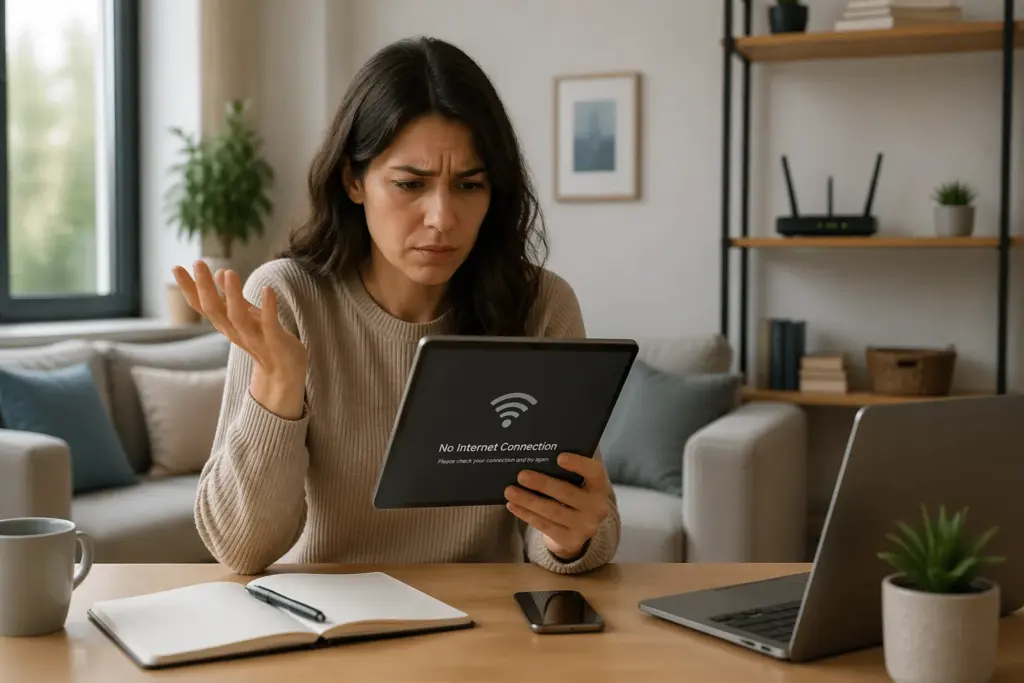
Most Wi-Fi dropouts on iPad come down to a few repeat offenders, like band steering on the router, a bad saved network profile, or an iPadOS setting that tries to be “helpful” and ends up breaking things. If you are seeing an iPad losing wifi connection every few minutes, you can usually fix it without buying new gear.
I am going to treat this like a real troubleshooting session, starting with the common causes and then moving to the fixes that actually stick. You will also learn when the problem is an iPad wifi weak signal issue versus a router configuration problem.
Common reasons iPads drop Wi-Fi more than other devices
iPads tend to roam between access points and Wi-Fi bands more aggressively than many laptops, especially on mesh systems. That behavior is great when it works, but it can look like the iPad wifi keeps dropping when the device keeps switching under the hood.
Another reason is that iPads often go to sleep and wake quickly, and the Wi-Fi stack has to renegotiate power saving and security keys. If your iPad drops Wi-Fi right after the screen turns off or right after you unlock it, that sleep and wake cycle is a strong clue.
Some routers also treat Apple devices differently because of how they handle MAC addresses and privacy features. That mismatch can show up as an iPad losing wifi connection while a Windows laptop stays connected on the same desk.
What Else Would You Like to Know?
Choose below:
Finally, iPads are more sensitive to certain “smart” Wi-Fi features like band steering, 802.11r fast roaming, and airtime fairness. Those features sound good on the box, but in real homes they can push an iPad into repeated disconnects.
Interference and congestion that make the iPad wifi weak signal look worse
A weak signal is not always about distance, it is often about noise on the channel your router picked. In apartments, the 2.4 GHz band can be so crowded that an iPad looks connected but keeps stalling and dropping.

Microwaves, baby monitors, older cordless phones, and even some USB 3.0 hubs can trash Wi-Fi in bursts. Those bursts are why the iPad losing wifi connection can happen at the same time every day, like dinner prep or a neighbor coming home.
On 5 GHz, the signal falls off faster through walls, and that is where “iPad wifi weak signal” usually shows up in larger homes. If you are two rooms away and the iPad keeps dropping while your phone hangs on, your phone may simply have a better antenna design.
One quick reality check is to stand near the router and test for 10 minutes. If the drops stop when you are close, focus on placement, mesh nodes, and channel selection instead of iPadOS tweaks.
Router-side changes that help iPad stay connected
If your iPad wifi keeps dropping and you have already rebooted the router, it is time to change how the router handles bands, security, and roaming. Routers ship with “auto” settings that aim for lab scores, not stubborn real-world compatibility.
The best router fixes are usually boring, like separating SSIDs, switching to WPA2 or WPA2/WPA3 mixed mode, and turning off fast roaming features that your iPad does not like. You can undo every one of these changes, so it is safe to test them one at a time.
| Router setting to try | What to change | Why it helps iPad dropouts |
|---|---|---|
| Separate 2.4 GHz and 5 GHz names | Create two SSIDs, connect iPad to one | Stops band steering loops that look like disconnects |
| Security mode | Use WPA2-Personal or WPA2/WPA3 mixed | Fixes handshake issues on some WPA3-only setups |
| Fast roaming (802.11r) | Disable, then test for an hour | Some iPads drop during key transitions on mesh networks |
| Airtime fairness | Disable if you see frequent stalls | Can deprioritize an iPad and trigger reconnects under load |
| Channel and channel width | Use 2.4 GHz channel 1, 6, or 11 and 20 MHz width | Reduces interference and retransmits that cause drops |
| DNS settings | Try 1.1.1.1 or 8.8.8.8 on the router | Fixes “connected but no internet” moments that prompt rejoin |
Settings on the iPad that can cause disconnects
Some iPad settings are meant to improve privacy or battery life, but they can backfire on finicky routers. If the iPad losing wifi connection started after an iPadOS update, these toggles are the first place I look.
Open Settings, tap Wi-Fi, then tap the blue info icon next to your network name. You will see options like Private Wi-Fi Address and Limit IP Address Tracking, and either one can trigger reconnect loops on older routers.
Try turning off Private Wi-Fi Address for that one network and test for a full day. Some routers keep stale DHCP leases tied to the old address, so the iPad wifi keeps dropping until the router forgets the old mapping.
If you use a VPN app or an ad blocking DNS profile, disable it temporarily and watch what happens. A broken VPN tunnel can look exactly like Wi-Fi dropouts because apps lose internet and the iPad tries to recover by reconnecting.
Forget and rejoin the network the right way
Forgetting the network is simple, but doing it cleanly matters when your iPad wifi keeps dropping. You want the iPad to rebuild the saved profile, not reuse a glitchy configuration that has been carried across updates.
Go to Settings, Wi-Fi, tap the info icon, then tap Forget This Network. After that, restart the iPad, reconnect, and type the password again instead of relying on keychain sharing.
When you reconnect, watch for a moment to see if the iPad grabs an IP address quickly. If it spins for a long time on “Obtaining IP Address,” the issue is often DHCP on the router, not the iPad itself.
If you can, set a DHCP reservation for the iPad in the router settings. That one change can stop the iPadOS wifi disconnect fix rabbit hole because it removes lease confusion as a cause.
Quick iPadOS wifi disconnect fix checklist before deeper resets
Before you reset anything, run a few fast checks that take less than five minutes. These steps catch the silly stuff, like a stuck captive portal prompt or an iPad that latched onto the wrong band.
Start by toggling Airplane Mode on for 10 seconds, then off, and rejoin the network. If that fixes it for a while, you are probably dealing with a negotiation or roaming issue rather than a dead radio.
- Toggle Airplane Mode for 10 seconds
- Turn Wi-Fi off and back on in Settings
- Disable VPN and DNS profile temporarily
- Turn off Private Wi-Fi Address for the problem SSID
- Forget the network, then rejoin manually
- Test near the router for 10 minutes
- Update iPadOS to the latest version available
How to reset network settings on iPad without losing data
A network settings reset is the cleanest way to wipe Wi-Fi, Bluetooth, and VPN configuration without touching your photos, apps, or files. People avoid it because it sounds scary, but it is not the same as erasing the iPad.
Go to Settings, General, Transfer or Reset iPad, Reset, then tap Reset Network Settings. The iPad will reboot, and you will need to re-enter Wi-Fi passwords afterward.
This reset removes saved networks, cellular settings if you have an iPad with LTE or 5G, and any custom DNS or VPN settings. It does not delete your Apple ID, your downloaded apps, your notes, or anything in iCloud Drive.
After the reset, connect to only one Wi-Fi network and test for a few hours before adding everything back. If the iPad wifi keeps dropping even on a freshly reset network stack, the router or the hardware becomes the main suspect.
Router placement and mesh tuning that reduce iPad losing wifi connection
Router placement is boring advice, but it is boring because it works. If the router sits inside a media cabinet next to a soundbar and a game console, you are asking for an iPad wifi weak signal problem.
Put the router out in the open, higher than furniture, and away from big metal objects like filing cabinets. Even moving it five feet can change the signal path enough to stop the iPad losing wifi connection in one corner of the house.
On mesh systems, do not place a node in a spot where it barely gets signal from the main router. A weak backhaul link makes the node look fine to the iPad, then the node drops packets and the iPad reconnects over and over.
If your mesh app shows signal quality between nodes, aim for good or excellent, not fair. I would rather have fewer nodes with strong links than three nodes chained through weak connections.
Advanced router tweaks when the iPad wifi keeps dropping under load
If the disconnects happen when someone starts a Zoom call, uploads a big file, or turns on a gaming console, you may be hitting router CPU limits or bufferbloat. That kind of overload can kick clients off briefly, and the iPad often shows it first.
Turn on QoS or Smart Queue Management if your router supports it, and keep the settings simple. On many ASUS routers this is Adaptive QoS, and on OpenWrt it is SQM with cake, and both can stabilize latency enough to prevent dropouts.
If your router allows it, set 5 GHz channel width to 80 MHz only if the signal is strong in the rooms you use. In a noisy neighborhood, dropping to 40 MHz can make the connection more stable even if the top speed number goes down.
Also check for automatic DFS channel switching on 5 GHz, because radar detection can force a channel change that looks like a disconnect. If your iPad drops at random times and your router logs show a channel move, pick a non-DFS channel and test again.
How to tell if the issue is the network or the iPad
You can save a lot of time by proving whether the iPad is the only device that misbehaves. If every device drops at the same time, stop blaming iPadOS and focus on the router, modem, or ISP line.
Test the iPad on a different network, like a phone hotspot or a friend’s Wi-Fi, and see if the iPad wifi keeps dropping there too. If it stays stable elsewhere, your home router settings are the issue even if other devices seem fine.
Also test a different device in the same spot where the iPad fails. If a laptop also struggles in that room, you are dealing with coverage, interference, or a bad mesh node placement.
When only the iPad drops and it drops on multiple networks, start thinking about the iPad’s Wi-Fi hardware, case interference, or a software profile that survived updates. That is when a network settings reset and a clean iPadOS update matter most.
When the problem is hardware and not software
Sometimes the iPad wifi keeps dropping because the Wi-Fi radio or antenna connection is failing, and no setting will fix it. The pattern is usually consistent, like the iPad disconnects whenever you pick it up a certain way or it gets warm while charging.
Cases with thick metal parts, magnetic mounts, or some keyboard covers can also mess with reception more than people expect. If removing the case improves stability, you found your cheapest fix.
Battery health and heat matter too, because the iPad can throttle radios when it is stressed. If the iPad losing wifi connection happens during gaming, video editing, or fast charging, test again when the iPad is cool and unplugged.
If you have done the resets, tested other networks, and the iPad still drops, book an Apple Store or authorized service appointment. Be ready to describe the exact pattern, because “it drops sometimes” gets you nowhere with diagnostics.
Conclusion
If your iPad wifi keeps dropping, the fix is usually a mix of one iPad setting and one router behavior that do not get along. Start with the simple checks, then move to forgetting the network, adjusting router options like SSID separation, and using a network settings reset if the problem sticks.
When the problem looks like an iPad wifi weak signal issue, focus on placement, mesh backhaul quality, and cleaner channels instead of chasing iPadOS menus. If the iPad losing wifi connection follows the iPad to other networks, treat it like a hardware or profile problem and get it checked.
How an Old Wireless Adapter Limits Your Speed Even on a Fast Network
» See exclusive tips for your home