Windows 11 Wi-Fi Problems After an Update: What to Check First
If you are dealing with Windows 11 wifi problems after update, you are not imagining it. A perfectly stable connection can turn flaky right after Patch Tuesday, and it is frustrating.
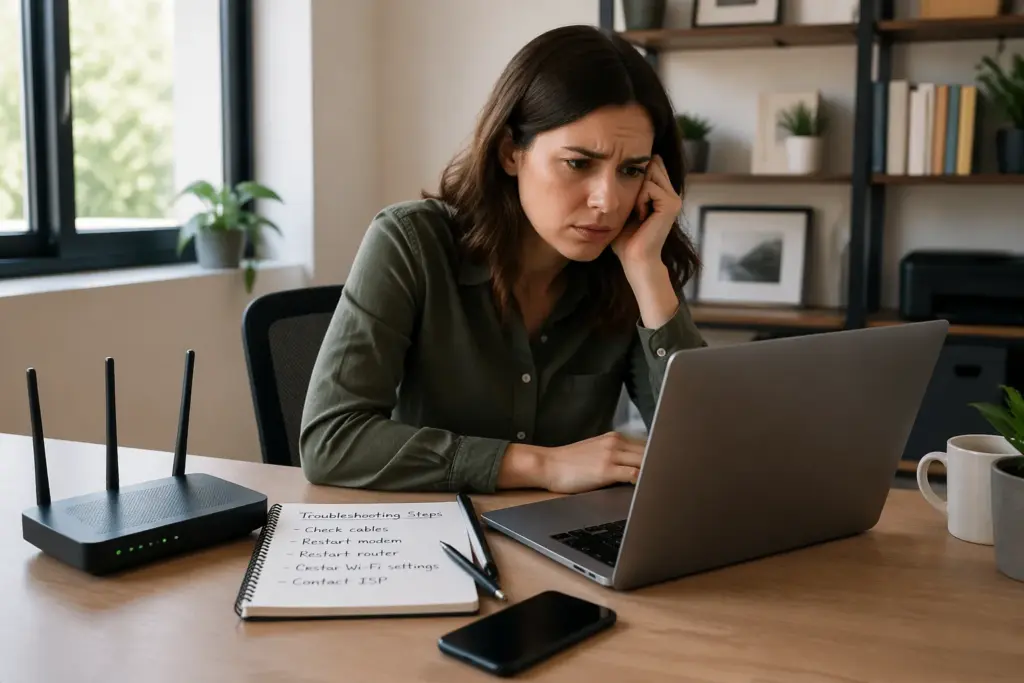
Sometimes Wi-Fi disappears completely, sometimes it connects but says “No internet,” and sometimes your speed drops to dial-up levels. The tricky part is that Windows can break networking in more than one way, so you want to start with the checks that give fast answers.
I see the same pattern again and again, a Windows update broke wifi and the PC acts like the router is the problem. Before you factory reset anything, you can usually narrow it down in 15 minutes with a few targeted steps.
This guide focuses on what to check first, then moves into drivers, resets, and what to do when Microsoft ships a bad patch. If your situation is “windows 11 wifi not working update” and you need your connection back today, start at the top and work down.
Why Windows updates sometimes break Wi-Fi
Windows updates can replace parts of the network stack, and that can change how your adapter talks to your router. A small change in power management, encryption handling, or DHCP timing can be enough to knock a borderline setup over.
Even when the update is not aimed at networking, it can still touch shared components like security libraries and kernel drivers. That is why Wi-Fi can break after what looks like a harmless cumulative update.
What Else Would You Like to Know?
Choose below:
Sometimes the update changes how Windows prioritizes interfaces, so it may prefer a virtual adapter, VPN, or old bridge configuration. When that happens, Wi-Fi can look connected while traffic quietly goes nowhere.
Driver updates are a common culprit because Windows Update may install a “newer” driver that is worse for your specific laptop or Wi-Fi chip. This is how a wifi driver issue windows 11 can appear overnight even though you did not touch Device Manager.

On laptops, OEM drivers often include custom tuning for antennas, thermal limits, and sleep behavior. When Windows swaps in a generic driver, you can get disconnects, slow speeds, or the adapter failing to wake up after sleep.
Some drivers also change default settings like roaming aggressiveness, preferred band, and transmit power. Those changes can make a previously stable but weak signal become unstable in the exact same room.
Feature updates and cumulative updates can also reset network-related settings without making it obvious. Things like metered connection rules, proxy settings, and DNS configuration can change, and the symptoms look like a broken connection.
It can also reset the network location profile, which affects firewall behavior and discovery. That is why printers, NAS devices, or casting can stop working even though the internet still works.
Windows can also re-enable services you disabled, or disable services that were working around a prior bug. When that happens, the failure feels random because you did not change anything yourself.
Security changes matter too, especially if your router is older and struggles with WPA3 transitions or mixed-mode settings. When Windows tightens requirements, your PC may refuse to connect to a network it used yesterday.
Certificate and time sync issues can also show up after updates, especially on dual-boot systems or machines that were asleep during the patch. If the clock is wrong, some secure connections fail in ways that look like “No internet.”
Finally, updates can expose existing router bugs by changing packet timing or retry behavior. The router was always a little fragile, but the update is what pushes it over the edge.
First checks before touching advanced settings
Start by confirming whether the problem is only on the Windows 11 device or on every device in the house. If your phone and TV also drop, you are chasing a router or ISP issue, not Windows 11 wifi problems after update.
If only one PC is failing, note whether it is failing on every network or only at home. That single detail can save you from wasting time on the wrong side of the problem.
Restart the PC and fully power cycle the modem and router, meaning unplug them for 30 to 60 seconds. It sounds basic, but it clears stuck DHCP leases and resets Wi-Fi radios that are half-crashed.
If your modem and router are separate boxes, power the modem up first and wait for it to fully sync before turning the router back on. If you do it in the wrong order, you can end up with a router that has internet but weird DNS or routing behavior.
Next, check the Wi-Fi icon in the system tray and confirm Airplane mode is off and Wi-Fi is on. I have watched Windows flip Airplane mode after an update on some laptops, especially when hotkeys are involved.
Also check whether a hardware switch exists on your laptop, because some models can disable the radio at a firmware level. If the radio is off at the hardware layer, Windows settings will look normal but nothing will connect.
Open Settings, go to Network and internet, then Wi-Fi, and confirm you are connecting to the correct SSID and band. A lot of “windows update broke wifi” reports are really the PC auto-joining a weak 2.4 GHz network when the 5 GHz one is still fine.
If you have multiple networks saved with similar names, forget the ones you do not use anymore. Windows can cling to an old profile with a mismatched password or security type and keep failing in a loop.
If you can connect but have no internet, try opening a couple of sites plus a direct IP like 1.1.1.1 in a browser. If IP loads but websites do not, you likely have a DNS problem rather than a radio connection problem.
If nothing loads at all, open a Command Prompt and run ipconfig to see if you have an IPv4 address, gateway, and DNS server. An address that starts with 169.254 usually means DHCP failed and Windows self-assigned an address.
Also check whether the problem is tied to sleep and wake behavior by doing a clean reboot and testing before you let the machine sleep. If it only fails after sleep, you can focus on power management and driver wake issues.
Quick isolation tests that save time
Before you start changing drivers, try connecting the PC to your phone hotspot for two minutes. If the hotspot works, your Windows networking is probably fine and your router compatibility is the issue after the update.
When you do this test, keep the phone close to the PC so signal strength is not part of the story. You are testing basic authentication, DHCP, and traffic flow, not range.
If the hotspot fails too, focus on the PC because the adapter, driver, or Windows network stack is likely broken. This is the fastest way to separate “windows 11 wifi not working update” from a home Wi-Fi problem.
If the hotspot connects but says “No internet,” check whether your phone hotspot actually has data and that you did not hit a carrier tethering limit. A bad hotspot test can send you down the wrong path if the phone is the real limitation.
Another quick check is Ethernet if you have a port or a USB-to-Ethernet adapter. If Ethernet is solid while Wi-Fi is broken, you can stop worrying about the ISP and focus on wireless-specific causes.
If both Ethernet and Wi-Fi fail, the issue is usually higher up in the stack, like DNS, proxy, VPN filters, or a corrupted TCP/IP configuration. That is when resets and adapter reinstalls become more likely to help.
You can also test whether the issue is only with one website or service by trying a few unrelated sites and a speed test. If only one service fails, you might be dealing with a DNS resolver issue or a temporary outage, not a Windows update problem.
Finally, check whether the Wi-Fi problem is tied to a specific band by forcing 2.4 GHz or 5 GHz if you can. Some updates and drivers behave differently with certain channel widths and security modes.
| Test | What to do | What the result means |
|---|---|---|
| Phone hotspot test | Connect to your phone hotspot and browse | Works means router side issue, fails means PC side issue |
| Ethernet test | Plug in Ethernet and run a speed test | Ethernet works means Wi-Fi specific, Ethernet fails means broader network stack issue |
| IP vs DNS test | Open 1.1.1.1 and then a normal website | IP works but domain fails means DNS problem |
| Adapter visibility | Check if Wi-Fi toggle and adapter exist in Settings | Missing adapter suggests driver disabled, removed, or failing |
| Other devices check | Test a laptop or phone on the same SSID | All devices fail suggests router or ISP outage |
Look for obvious adapter and signal problems in Windows 11
Open Settings, go to Network and internet, then Advanced network settings, and look for your Wi-Fi adapter. If it is disabled, enable it, and if it is missing entirely, you are likely dealing with a driver or hardware detection issue.
If the adapter is missing, also check if you see any “Unknown device” entries in Device Manager. Sometimes the Wi-Fi card is detected but not properly identified, which points straight to a driver mismatch.
Then open Device Manager, expand Network adapters, and find your wireless card, often Intel Wi-Fi, Realtek, Qualcomm, or MediaTek. If you see a yellow warning icon, Windows is telling you there is a driver or device error.
Open the adapter Properties and look at the Device status message, because it often hints at the failure type. A Code 10, Code 43, or “device cannot start” message is usually driver-related, but it can also indicate a failing card.
Check the connection properties for the network you are joining and look at signal strength and link speed. A weak signal after an update can happen if roaming aggressiveness or power saving settings changed, so the PC clings to a distant access point.
Also look at the Wi-Fi standard being used, like 802.11n, 802.11ac, or 802.11ax, because a fallback can explain sudden slowdowns. A driver or router negotiation issue can drop you from Wi-Fi 6 to an older mode without making a big announcement.
If your router has separate names for 2.4 GHz and 5 GHz, force the PC onto the better band for your layout. A lot of speed complaints blamed on Windows 11 wifi problems after update are really band steering behaving differently.
If you are close to the router and still seeing weak signal, check whether the laptop is using a low-power mode. Some updates change power plans or restore default battery saver behavior, which can reduce Wi-Fi performance.
In Wi-Fi properties, check whether the network is set to connect automatically and whether it is marked as metered. A metered connection can change update behavior and sometimes interacts oddly with VPNs and background services.
If the Wi-Fi network keeps asking for the password, forget the network and re-add it. A corrupted saved profile can survive updates and cause authentication loops that look like a driver failure.
Fix common settings that updates sometimes flip
Go to Settings, Network and internet, then Proxy, and make sure you are not using a proxy unless you set it on purpose. A bad import of enterprise settings or a leftover VPN profile can break browsing while Wi-Fi still shows connected.
If “Automatically detect settings” is on and you are in a home environment, try toggling it off and on once. It should not matter most of the time, but I have seen it get stuck after updates and confuse web access.
Check your VPN client and temporarily disable it, especially if it installs its own network filter driver. When a windows update broke wifi for my own test machine, the real issue was a VPN adapter that stopped passing DNS after the patch.
If you have multiple VPN tools installed, uninstall the ones you do not use, because each one can add a filter driver. Stacking filters is a reliable way to create weird, intermittent failures after a Windows update.
Open the Wi-Fi network properties and toggle Random hardware addresses off for that network if your router is picky. Some routers mishandle MAC randomization and will hand out a bad lease, which looks like a Windows issue.
If you rely on MAC filtering on your router, MAC randomization will break it by design. In that case, turning it off is not optional if you want consistent connections.
Finally, check power settings by opening Device Manager, right-clicking the Wi-Fi adapter, choosing Properties, then Power Management. Uncheck “Allow the computer to turn off this device to save power” if disconnects happen after sleep.
Also check your Windows power mode under Settings, System, Power and battery, because “Best power efficiency” can be aggressive on some laptops. Switching temporarily to “Best performance” is a clean way to test whether power saving is the trigger.
If you use third-party security software, consider disabling it briefly to test, because some suites insert network inspection modules. After updates, those modules can lag behind and break traffic until the vendor updates them.
Check whether you have a custom DNS set under your adapter properties or in your router, because a dead DNS server looks exactly like “No internet.” Switching temporarily to a known resolver can confirm whether DNS is the only thing failing.
How to roll back or update the Wi-Fi driver
If you suspect a wifi driver issue windows 11, the fastest win is often rolling back the driver that Windows Update just installed. Open Device Manager, right-click your Wi-Fi adapter, choose Properties, then Driver, then Roll Back Driver if it is available.
When you roll back, pay attention to the driver date and version so you can track what changed. If the rollback fixes it immediately, you have a clear cause and you can focus on preventing Windows from reintroducing that driver.
If Roll Back is greyed out, you can still update the driver, but do it from the laptop maker or the Wi-Fi chipset maker, not from random driver sites. Dell, HP, Lenovo, ASUS, Intel, and Realtek publish drivers that match your hardware and power profiles.
If you are using an Intel adapter, Intel’s own driver package often fixes issues faster than OEM packages, but OEM packages sometimes include important platform tweaks. If one path fails, test the other rather than assuming you are stuck.
After installing a new driver, reboot even if Windows does not ask, because the network stack can keep old modules loaded. Then test both connection stability and speed, since some drivers fix drops but cap throughput on certain routers.
When you test, do not only run a speed test once, because speed tests can look fine even with intermittent packet loss. Leave a continuous ping running for a minute or two to see if the connection is stable under light load.
If the adapter disappears or shows Code 10 or Code 43, uninstall the device in Device Manager and check the box to delete the driver if offered. Reboot and let Windows detect it again, then install the vendor driver to avoid the “windows 11 wifi not working update” loop.
If Windows keeps reinstalling the bad driver, use Optional updates to pick a different driver if one is offered there. You can also temporarily pause updates while you stabilize the machine, because repeated driver swaps can keep breaking Wi-Fi.
In some cases, the newest driver is not the best and you need a known-stable version from a month or two earlier. That is especially true for brand-new Wi-Fi 6E and Wi-Fi 7 adapters where driver maturity matters a lot.
If you are on a laptop, also check the OEM support app, because it may offer a chipset or BIOS update that affects Wi-Fi behavior. Firmware and BIOS updates can fix sleep-wake issues that look like a pure Windows driver problem.
Network reset commands that often fix update-related issues
When settings look normal but networking is still broken, I go straight to the built-in reset commands because they fix a lot of weird post-update behavior. Open Windows Terminal as Administrator, then run the resets one by one and reboot afterward.
If you are nervous about changing things, remember these commands are reversible in the sense that Windows rebuilds defaults on reboot. The main downside is losing custom network configuration, not damaging the system.
These commands wipe and rebuild pieces of the TCP/IP stack, Winsock catalog, and DNS cache. They will not delete your files, but they can remove custom DNS, static IPs, and some VPN bindings, so note anything you configured manually.
If you are on a managed work device, check with IT before doing aggressive resets, because you may have required profiles. On a personal PC, these resets are one of the safest high-impact fixes you can try.
Run the commands in order, and do not skip the reboot at the end, because some changes only apply after a restart. If you run them and keep testing without rebooting, you can get confusing half-results.
- ipconfig /flushdns
- ipconfig /release
- ipconfig /renew
- netsh winsock reset
- netsh int ip reset
- netsh advfirewall reset
- shutdown /r /t 0
After rebooting, reconnect to Wi-Fi and check whether you receive a normal IPv4 address and default gateway. If you still get a 169.254 address, the issue is likely DHCP negotiation or authentication, not a cached DNS problem.
If the commands fix browsing but local devices are still unreachable, you may need to re-check network profile and sharing settings. Updates sometimes flip the network back to Public, which can block local discovery and file sharing.
If you use Hyper-V, WSL, or Docker, be aware they create virtual switches that can complicate troubleshooting. A reset can reorder adapters and change metrics, so re-check which adapter Windows is actually using for default routes.
Use Windows 11 Network Reset the right way
If commands do not fix it, use Settings, Network and internet, Advanced network settings, then Network reset. This removes and reinstalls network adapters and returns many networking settings to defaults, which is often enough when a Windows update broke wifi.
Network reset is more disruptive than the command-line resets because it can remove virtual adapters and custom bindings. I treat it as the step right before reinstalling drivers manually or uninstalling updates.
Be prepared to re-enter Wi-Fi passwords and reconnect Bluetooth PAN or virtual adapters afterward. If you rely on a work VPN, you may need to sign back in or reinstall the client because its filter drivers can get removed.
If you have a printer or NAS that depends on a static IP mapping, double-check those settings after the reset. The reset can change how Windows discovers devices, which makes it look like the network is still broken when it is really just undiscovered.
After the reset and reboot, connect to your Wi-Fi and immediately run a speed test and a simple ping test to your router, like ping 192.168.1.1 -n 50. If ping shows spikes or timeouts while signal is strong, you still have a driver or router compatibility issue.
If ping to the router is clean but websites still fail, focus on DNS and proxy again, because the radio link is fine. In that case, try a different DNS server or test with a browser that does not use a custom proxy configuration.
If the reset fixes connection but speeds are still bad, check for a stuck “Public network” firewall profile and test again. Some updates flip the profile and block discovery or local traffic, which can make things like streaming boxes look offline.
Also check whether Windows is downloading updates or OneDrive is syncing heavily right after the reset, because that can skew your speed test results. Give it a few minutes to settle, then test again under normal load.
If you are on Wi-Fi 6 or 6E, verify that the router and PC agree on channel width and that you are not stuck on a congested channel. A reset does not fix RF congestion, so you may need a router channel change to get your old speeds back.
Router-side tweaks that pair badly with Windows updates
Sometimes Windows 11 is fine and the update just changes how it negotiates Wi-Fi security with your router. If your router is on old firmware, update it first, because WPA and roaming fixes often land there too.
If you rent your router from your ISP, check whether it has an update option or whether updates are automatic. ISP routers can be slow to receive fixes, which is why a Windows update can suddenly expose a long-standing router bug.
Check your Wi-Fi security mode and avoid mixed WPA2/WPA3 transition mode if you see random failures to connect after updates. I prefer WPA2-Personal on older routers, and WPA3-Personal on newer gear that handles it cleanly.
If you must use transition mode because you have older devices, try splitting SSIDs so the Windows PC uses a WPA3-only network and legacy devices use WPA2. That simple separation often stops the random connect-fail behavior.
If you use a mesh system, make sure the nodes are not stuck in a bad backhaul state, because Windows will look guilty when the mesh is really the bottleneck. A quick node reboot or a forced channel rescan can fix speed drops that started the same day as the update.
Mesh systems also sometimes change band steering behavior after their own updates, which can line up with Windows updates by coincidence. If your PC keeps bouncing between nodes, you may see drops that feel like driver instability.
Also check channel width and interference, especially on 2.4 GHz where 40 MHz mode can backfire in crowded neighborhoods. When people report Windows 11 wifi problems after update, I often find the PC simply fell back to a lower modulation rate due to noise.
On 5 GHz, DFS channels can cause sudden disconnects if radar detection triggers a channel change. If your router is using DFS and you see periodic drops, try a non-DFS channel to test whether that is the real cause.
If your router offers advanced features like Airtime Fairness, MU-MIMO toggles, or “smart connect,” try disabling them temporarily. Some combinations behave badly with certain Windows drivers, and updates can change the negotiation enough to trigger the bug.
Finally, consider whether your router is overloaded, especially if it is older and you have many devices. An update can increase background traffic slightly, and a stressed router can respond by dropping clients or handing out unstable leases.
When the problem is the update itself and how to wait it out
There are times when the patch really is the problem, and you can tell because forums fill up with the same adapter models failing in the same week. If you see that pattern and your troubleshooting points to Windows, uninstalling the latest quality update can be a reasonable move.
It helps to note the exact KB number and your adapter model, because that is how you match your symptoms to other reports. If dozens of people with the same Intel or Realtek model are affected, you can stop blaming your router.
Go to Settings, Windows Update, Update history, then Uninstall updates, and remove the most recent cumulative update, then reboot. If Wi-Fi returns, pause updates for a week or two so Windows does not reinstall the same patch immediately.
If uninstalling the update does not help, reinstall it and move on, because you have learned it is not the trigger. That is still a win, because it prevents you from sitting on an unpatched system for no reason.
While you wait, keep an eye on optional updates, because Microsoft sometimes ships a fix as a preview cumulative update or a driver update under Optional updates. Install only what is relevant, since stacking random previews can create new problems.
If you see an optional driver update for your Wi-Fi adapter, it can be worth trying if you are stuck. If it makes things worse, roll it back quickly so you do not end up troubleshooting two changes at once.
If you cannot uninstall the update or you need security patches, use a workaround like Ethernet, a USB Wi-Fi adapter, or tethering until the next patch lands. It is not elegant, but it beats losing work time while you chase a bug that is not yours to fix.
A cheap USB Wi-Fi adapter can be a surprisingly good emergency tool, especially if your internal adapter is the one affected by the driver conflict. It also helps confirm the rest of Windows networking is healthy, because a different adapter uses a different driver path.
If you are in a business environment, document what fixed it and the update version that caused it. That makes it easier to prevent the same patch from rolling out widely and breaking a fleet of laptops.
Once a fix lands, update again and then retest your original adapter and driver combination. The goal is to get back to a supported, patched system without relying on a workaround forever.
Conclusion
Windows 11 wifi problems after update usually come down to three buckets, a driver change, a flipped setting, or a router compatibility edge case. If you start with isolation tests, then handle drivers, then run resets, you can solve most cases without wiping your PC.
The key is to avoid random changes and instead prove where the failure lives, PC side or router side. Once you know that, the fixes become straightforward and you stop chasing symptoms.
When you hit the rare situation where the windows update broke wifi for lots of people, uninstalling the patch and pausing updates is often the least painful option. Once Microsoft ships a fix, you can update again and keep your network stable.
If you work through the steps in order, you will usually end up with a clear cause, even if the final solution is temporary. That clarity is what keeps a bad update from turning into an all-day troubleshooting session.
iPad Wi-Fi Keeps Dropping: Why It Happens and How to Fix It
» See exclusive tips for your home